 When you use AWS (Amazon Web Services) and need to access your EC2 machines, you have a few options. I think most people end up using the in-browser terminal console or the aws cli to connect to their machines, or opening the ssh port add keys there to directly connect using ssh. In most professional (production) environments this is blocked (for several good reasons). There is however a nice way to be able to connect to your machine with an ssh client through the aws ssm command line interface. Let me take you through the mechanics and then give you a nice script and config example which allows you to use ssh as if you were living in the good old days 🙂
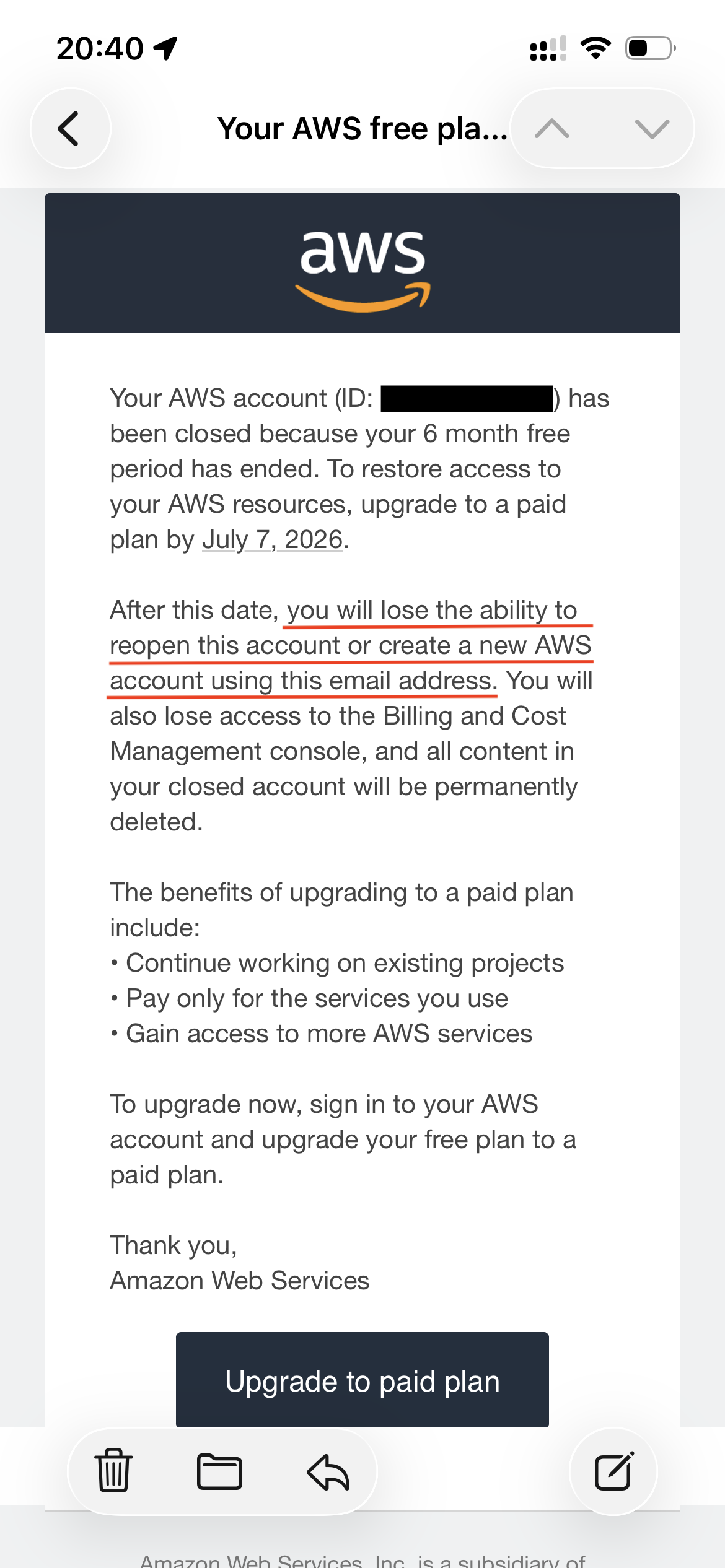 Disclaimer: This is not in any way an advertisement or promotion of the use of AWS in any form. As a matter of fact I would advise you to stay away from AWS for several reasons. In my case, AWS banned my private email address for life because I didn’t continue using their service after the trial period. See the screenshot (black censoring and red lines are mine, the rest is unaltered). Naturally this does not make me an AWS fan.
With that out of the way, lets see how we can make your workday a little more workable.
Level 1: ssh config with ProxyCommand
The simplest way to get your terminal to accept a command like `ssh my-beautiful-host` is to have a configuration in your ~/.ssh/config file which looks like this (scroll right, the config file does not support line wraps):
Host my-beautiful-host
  User ssm-user
  ProxyCommand bash -c "aws ssm start-session --profile my-aws-profile --target i-123456789 --document-name AWS-StartSSHSession --parameters 'portNumber=%p'"
For this to work, you need to:
- Have your aws cli (command line interface) environment set up and working
- Log in with `aws sso login` on the command prompt
- Know the profile and node id of the machine you want to connect to beforehand (
i-123456789in our example) - Have your public key on that machine
Level 2: Finding the machine Id on the command line
To be able to find the machine id of all running machines without going to the browser, you can use the `aws ec2` command like so:
~ aws sso login
~ aws ec2 describe-instances \
        --profile my-aws-profile \
        --filters "Name=instance-state-name,Values=running" "Name=tag:Name,Values='*'" \
        --query "Reservations[*].Instances[*].{Name:Tags[?Key=='Name']|[0].Value,Instance:InstanceId}" \
        --output table | cat
This will list all your running machines in a nicely formatted table:
---------------------------------------------------------------
|                      DescribeInstances                      |
+----------------------+--------------------------------------+
|       Instance       |                Name                  |
+----------------------+--------------------------------------+
|  i-123456789         |  demo-machine-1                      |
|  i-223456789         |  demo-machine-2                      |
|  i-323456789         |  production-machine                  |
|  i-423456789         |  production-machine                  |
|  i-523456789         |  production-machine                  |
+----------------------+--------------------------------------+
Please note the duplicate names of the last 3 machines which are in a failover group, we’ll get to that later.
Level 3: Combining the two
We can combine the two tricks above by creating a script to find the machine id and using that in the ssh config. Lets look at the script first:
#!/bin/bash
#
# Logs into amazon aws sso, and gets the instance id for the hostname you are providing.
#
# Usage:
#         aws-instanceid <profile> <hostname> <index>
#
# Output:
#         i-98624923
#
# Use this in your ssh config like this (StrictHostChecking is off to get rid of warnings after each CodeDeploy):
#
# Host my-example-host
#   User ssm-user
#   ProxyCommand bash -c "aws ssm start-session --profile my-example-profile --target $(aws-instanceid.sh my-example-profile my-example-host 1) --document-name AWS-StartSSHSession --parameters 'portNumber=%p'"
#   StrictHostKeyChecking no
#   UserKnownHostsFile /dev/null
#

if [[ -z "$1" ]]; then
    echo "Please provide a profile name matching ~/.aws/config"
    cat ~/.aws/config | grep "^\[profile"
    exit -1
fi

profile="$1"

if [[ -z "$(aws sts get-caller-identity --profile $profile | grep Arn)" ]]; then
    # User is not logged in, log in.
    aws sso login --profile $profile
fi

if [[ -z "$2" ]]; then
    echo -e "\nAvailable aws instances for profile $profile:"
    aws ec2 describe-instances \
        --profile $profile \
        --filters "Name=instance-state-name,Values=running" "Name=tag:Name,Values='*'" \
        --query "Reservations[*].Instances[*].{Name:Tags[?Key=='Name']|[0].Value,Instance:InstanceId}" \
        --output table | cat
    echo -e "\nUse $0 <hostname>"
    echo "Or $0 <partial hostname>"
    echo -e "To connect to <hostname>.\n"
    exit 0
fi

hostname="$2"

ids=$(aws ec2 describe-instances --profile $profile \
    --filters "Name=instance-state-name,Values=running" "Name=tag:Name,Values='*$hostname*'" \
    --query "Reservations[*].Instances[*].{Name:Tags[?Key=='Name']|[0].Value,Instance:InstanceId}" \
    --output text | sort | awk '{ print $1 }')
count_number_of_ids=$(awk 'END{print NR}' <<< "$ids")


if [[ $count_number_of_ids == "0" ]]; then
    echo "Error, argument \"$1\" does not match an existing hostname in aws profile $profile" >&2
    exit -1
elif [[ $count_number_of_ids -gt "1" && -z "$3" ]]; then
    echo "There are $count_number_of_ids matching hostname $hostname, please provide a better name, or an index in this list:" >&2
    printf '%s\n' "$ids" | awk '{ print NR ": " $0 }' >&2
    exit -1
fi

if [[ -z "$3" ]]; then
    hostindex="1"
else
    hostindex="$3"
fi

if [[ $count_number_of_ids -lt $hostindex ]]; then
    echo "There are only $count_number_of_ids machines which match hostname $hostname." >&2
    exit -1
fi

connect_id=$(awk -v N="$hostindex" 'NR==N { print; exit }' <<< "$ids")

echo "$connect_id"
This script will log you in, search for any machine containing the name you specified, and if it finds more than 1 (remember the production example above), it sorts them to be deterministic, and allows you to use an index number to select the machine you want to know the machine id of. So with this script, you can find a machine id by typing:
~ aws-instanceid.sh my-aws-profile demo-machine-1
i-123456789
or, in the case of the production machines, with a partial name and an index number:
~ aws-instanceid.sh my-aws-profile production 2
i-423456789
Now that we have a script that just returns the machine id and also makes sure you are logged in, we can use that output in the ssh configuration, because we are allowed to call scripts inside that config (isn’t it wonderful). If you change the entry in ~/.ssh/config to call the script to find the id, like so:
Host my-beautiful-host
  User ssm-user
  ProxyCommand bash -c "aws ssm start-session --profile my-aws-profile --target $(aws-instanceid.sh my-aws-profile demo-machine-1) --document-name AWS-StartSSHSession --parameters 'portNumber=%p'"
With that in place, you can do the following on the command line:
~ ssh my-beautiful-host
…and it will connect to your machine as-if you were connecting to a “normal” machine. Everything will work as normal: port forwarding, session timeouts, everything.
Level 4: A bit of robustness
You might have noticed that when your session expires and the script asks you to log in again, the ssh command fails. That is because the aws sso login writes some text to the output. Ideally you need to check that output, but if you don’t care that much (you know it’s you because of the timing), you can add a little grep statement to find the machine id regardless, to polish the experience:
Host my-beautiful-host
  User ssm-user
  ProxyCommand bash -c "aws ssm start-session --profile my-aws-profile --target $(aws-instanceid.sh my-aws-profile demo-machine-1 | grep "^i-") --document-name AWS-StartSSHSession --parameters 'portNumber=%p'"
Level 5: Surviving CodeDeploy (boss level)
As you might have noticed, the commands above will trigger ssh to check the ~/.ssh/known_hosts file. This is nice if you never rebuild your ec2 instance, but in a professional environment like the one I am working in, you might have set up CodeDeploy to re-create the whole machine on each release. There can be several reasons for using CodeDeploy this way is:
- Proper blue/green deployment: If the new machine does not start, you can just delete it and no-one will notice
- OS level patches: On each deployment, you get a new machine with the newest patches, and without any scripts that might have been installed by roque agents on your old machine.
- Auto-scaling: on higher loads, you can have AWS automatically add more machines or remove them if they are no longer needed.
Of course this means that the known hosts file needs to be updated each time. I haven’t gotten to a nice way to automate that (suggestions welcome), so for now I chose to ignore the host keys. There are several safety nets in our company that makes me ok to do so, please decide for yourself if you are okay with this in your setup. You can ignore the host keys and write the “new ones” to /dev/null by adding this trick to your config:
Host my-beautiful-host
  User ssm-user
  ProxyCommand bash -c "aws ssm start-session --profile my-aws-profile --target $(aws-instanceid.sh my-aws-profile demo-machine-1) --document-name AWS-StartSSHSession --parameters 'portNumber=%p'"
  StrictHostKeyChecking no
  UserKnownHostsFile /dev/null
Additional tips
Note that to be able to connect to your machine like this, you still need the public part of your ssh key on the server you need to connect to. This gives you double security: you need credentials to access AWS, you need to be allowed to connect to that machine in AWS, and you need your ssh key to be provisioned on that machine in the ~/.ssh/authorized_keys file.
If you have 1password as a password manager, I can recommend setting up 1password as an SSH agent so that your private key is not even on your machine anymore, and can only be unlocked if there is access to 1password. On my work machine, this means that I can ssh to the AWS EC2 machines and unlock the ssh key with my fingerprint reader.
Another great improvement would be adopting the script to not just output the machine id, but the complete ProxyCommand. That would make the ssh config file a lot cleaner. This is left as “an exercise for the reader”.
I hope this lengthy blogpost gave you some ideas and tips.
Happy coding!