 When you use AWS (Amazon Web Services) and need to access your EC2 machines, you have a few options. I think most people end up using the in-browser terminal console or the aws cli to connect to their machines, or opening the ssh port add keys there to directly connect using ssh. In most professional (production) environments this is blocked (for several good reasons). There is however a nice way to be able to connect to your machine with an ssh client through the aws ssm command line interface. Let me take you through the mechanics and then give you a nice script and config example which allows you to use ssh as if you were living in the good old days 🙂
Tag: osx
macOS Sierra SSH “Permission Denied”
 If you used DSA keys to log in to your SSH server and have upgraded your client machine to macOS Sierra (or OSX Sierra if you like), you probably ran into this problem:
client$ ssh -p 8123 george@10.0.0.10 -i ~/.ssh/id_dsa
Permission denied (publickey).
The answer to this problem is replacing the DSA key with an RSA key, but how do you do on the server when your only means for connecting is the OSX client machine you just upgraded? Here’s how:
BaseCamp Import problem [fixed]
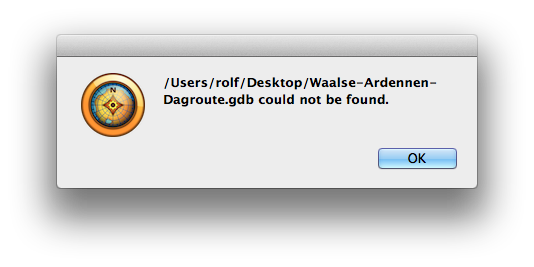 On Mac OSX, when installing Garmin BaseCamp 4.1.2 from the Appstore, there is a chance that importing downloaded routes in gdb or gpx files from your local machine will not work. The error you’ll get is “[filename].gdb not found”, in a popup much like the one shown here. If you open the console app, you’ll see the following error in the logfile:
sandboxd[28092]: ([27931]) Garmin BaseCamp(27931) deny file-read-data /Users/rolf/Desktop
This means that the OSX Sandbox mechanism does not allow Garmin BaseCamp to read files in that folder. I have briefly searched documentation on how to grant BaseCamp the rights to read files there, but I couldn’t find anything that would work. I did find a way to work around this problem though: Garmin BaseCamp does have rights to read your Garmin device. So here we go:
- Temporarily copy the files you want to import in Garmin BaseCamp onto your device (or in my case: the extra SD card in the device).
- Start Garmin BaseCamp, and select “File” -> “Import…”.
- Browse to the Garmin SD card and select the gdb file to import. Voila. That will get it into BaseCamp.
- Delete the gdb file from the Garmin. We don’t need it anymore, the Garmin was just a place where BaseCamp could read the file.
From here on, everything should work as normal. This is just a workaround. If anybody finds out how to really fix this problem let me know.
Fixing Photo Creation Dates
 You know how it is on vacation. You take your camera, shoot pictures, and when you get home you see that you forgot to set the date/time on your camera. Even worse: your wife also took a camera with her, and she actually read the manual and set the time correctly. So now you have two sets of photos with mismatching date/times. Now what?
It turns out that there is actually a pretty simple trick to solve this, and you don’t even haven to install exiftool or do funny command line voodo. If you have iPhoto and a mouse, here’s what you do:
Why some App Store apps won’t install
 I was happily playing around with the appstore, and came across this funny free game called “Hedgewars”. Originally a free Linux game, it apparently got ported to the Mac and put in the App Store, just as a slew of Flash-based games (yes, Steve has some ‘splainin’ to do).
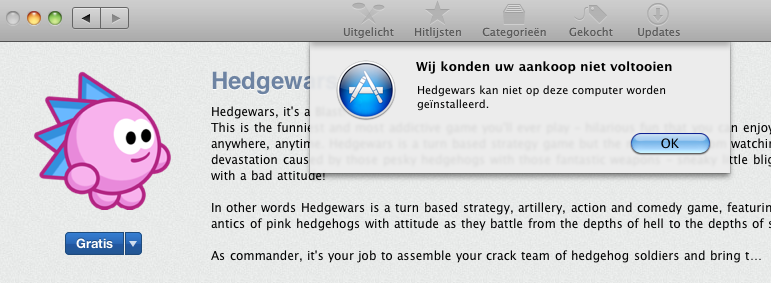
I tried to install Hedgewars on my trusty Mac Mini and got this message saying “This Application can not be installed on this machine”:
Move Time Machine data to a Drobo
 If Santa treated you particularly well this season, or you have put some of your savings to good use, chances are that you have a brand-new Drobo looking at you right now. Meanwhile, your Mac is happily making Time Machine backups to that trusty old local USB disk. So you want to use that new Drobo for Time Machine backups, but don’t want to loose history? Here’s how (baby steps, no tools required, screenshots included):
Starting Java app from Applescript
Suppose you have a Java Swing application which you can start by typing the following on the command line:
java -jar myTerrificSwingApp.jar
If you want to make that application start from the Finder in OSX, there are a lot of options which range from ugly to convoluted. If you need a quick fix, here’s how to do it.
Migrate from Password Gorilla to KeePass
 I used to use Password Gorilla to store my passwords, because it can run on both Mac and Windows. Because my password database keeps growing, Password Gorilla is becomming a very slow starter, even on my new solid state disk. A few weeks ago I learned that KeePass is a much more modern application, and is available for both Mac and Windows. Here’s what I did to get all my passwords into KeePass:
How to put DVD’s on your iPhone (for free)

A lot of companies like to sell you applications to put DVD’s on your iPhone. Usually these apps are just wrappers around existing tools, and are pretty expensive if you consider you can do it for free. And you don’t need to be a computer wizard either! The steps are simple:
- Use Handbrake to rip the DVD to iPhone format
- Drag the generated mp4 file into iTunes
- Sync it to your iPhone like all other content
To show you exactly how this is done, I’ve written up this “babystep-by-babystep” tutorial. Let me show you how I ripped “For A Few Dollars More” and put it on my iPhone:
Disclaimer: The DVD I ripped is bought and payed for. This article does not relief you of your responsibility to obey the law, so please be careful. And be nice, don’t pirate.
Remote Desktop Connection updated
“Remote Desktop Connection.app” allows you to see the desktop of a remote Windows machine on your mac. This application will not update itself automatically, unless you have it installed as part of the Microsoft Office for Mac suite. If you’ve downloaded the 1.0.3 version you probably did not notice that “Remote Desktop Connection.app” was updated somewhere last year by microsoft.
You can find the latest version of Remote Desktop Connection on the Microsoft Mactopia site. Version 2 is an improvement over 1.0.3 (which I had). Notable differences are:
- Nicer configuration screens, makes configuring your resolution and shares easier.
- Now a Universal Binary, which should improve performance on Intel Macs. I have not noticed improvement, but that’s probably because the network is the bottleneck.
- Supports the new RDC 6.0 protocol used by Vista.
- Can do authentication of the remote machine (if it’s a Vista machine).
- Your Mac printer can be exposed to the Windows machine so you can print documents on your local printer.
I played with it for a while, and apart form the new looks I can not say it’s very different from the 1.0.x version. It could load my old RDC 1.0.3 configuration files. If you need to connect to a Windows desktop from your Mac, this does the job just fine.